Control and administration of cab label printers
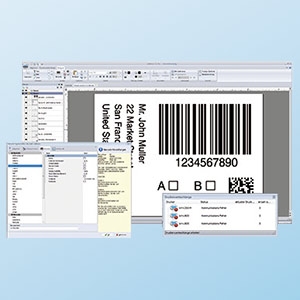
Label software
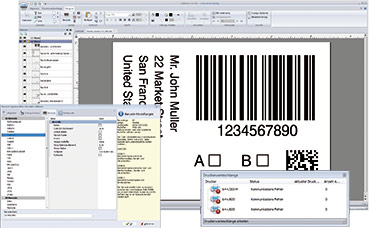
 cablabel S3
It opens up the full potential of cab devices. Modular design allows adaptation in steps to individual demands.
See further information on www.cab.de/en/cablabel
Stand-alone operation
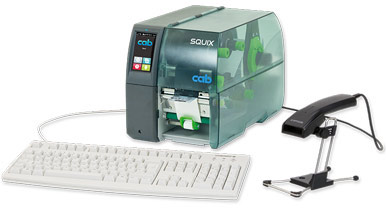
This operating mode enables a printer select and print labels while not connected to a host system. Labels can be designed using software such as cablabel S3 or a text editor on a PC. Label formats, texts, graphics and data of a database can be stored on external memory media or a printer’s internal IFFS memory. Variable data are sent via a keyboard, a barcode scanner, a weighing system or any other host to a printer, and / or recalled from a host using the Database Connector and printed.
Printer drivers
 cab provides drivers to control a printer with software other than cablabel S3.
Free download on www.cab.de/en/support
Programming
 JScript
cab has developed the embedded JScript programming language to control a printer. Laden Sie eine kurze Einführung oder die vollständigen Programmieranleitungen kostenlos herunter:
Brief introduction to cab printer programming (PDF; 7.5 MB)
Programming Manual JScript for SQUIX, MACH 4S, EOS2, EOS5, XC Q, XD Q, HERMES Q, PX Q, AXON1, AXON 2 (PDF; 7.5 MB)
 abc Basic Compiler
Integral to a firmware, it in addition to JScript enables advanced programming before data are edited for printing. For example, external printer languages can be replaced without intervening in a printing process in progress. Data may be imported as well from other systems such as scales, barcode scanners or PLC.
Connecting to SAP®
Labels can be printed from SAP1) on cab devices and systems. There are various methods:
- Printing with SAPscript
- Printing with SmartForms
- Printing with Adobe Interactive Forms
See instructions on www.cab.de/en/sap
Database
 Database Connector
Printers in a network may access data from a ODBC / OLEDB database and print it on labels. Data can be rewritten to a database while print jobs are in progress.
Network integration
| Protocol / service | Feature / possibilities |
|---|---|
| RawIP |
Direct print job submission via TCP (configurable port, 9100 default); easy integration with spoolers and host systems |
| LPD / LPR |
Classic Unix / Windows print queue service for submitting and checking print job status |
| FTP / FTPS |
Automatic print job transfer and execution, as well as access to memory (labels, images, fonts, firmware updates |
| HTTP / HTTPS |
Web-based configuration, status monitoring, firmware updates |
| WebDAV |
Inclusion of central WebDAV server directories (containing stored print data) using the integral WebDAV client |
| SOAP Webservice | API for printer control and status queries via a standardized WSDL description |
| SNMP v2 | Monitoring via standard printer MIB OIDs and traps for events (paper ending, error, maintenance) |
| SMTP | Emails as notification on events (errors, maintenance, status) |
| PJL | Printer Job Language: status and control commands within a print data stream |
| OPC-UA / OPC-UA DI | Industrial API for printer control and monitoring, device information companion specification included |
| SOTI Connect2) | Cloud-based, thus centralized management of printer fleets |
| VPSX (LRS) | Integration with LRS VPSX output management for enterprise-wide print spooling |
| VNC | Remote access to a printer‘s operation panel for viewing and controlling per network |
| Avahi / mDNS / Zeroconf | Automatic service discovery (Bonjour-compatible) for driverless detection in a local network |
Web services
Support for cab printing systems — using the SOAP web service
Contents
1 Introduction
A web service is a standardized way for two programs to talk to each other over a network — independent of the platform, programming language, or location on either side.
Instead of a person operating a user interface, one application sends a request and another returns a response, both in a well-defined, machine-readable format.
This service uses SOAP (Simple Object Access Protocol). SOAP exchanges messages as XML documents and transports them over ordinary HTTP(S), so it works through standard network infrastructure. The available operations, their parameters, and their return values are described in a WSDL file (Web Services Description Language) — a machine-readable contract that development tools read to generate ready-to-use client code automatically.
For the user this means:
- Independent of operating system, programming language, and location
- Built on open, established standards, supported by all major platforms (e.g. Microsoft, SAP, Oracle)
- No printer driver or dedicated software required — labels can be printed straight from an ERP system
- Unicode support for multilingual content
The following chapters describe the cab printer's SOAP web service in detail: chapter 2 covers connecting and activation, chapters 4–6 document the operations, data types and errors, and chapter 7 shows how to call the service from C#, Visual Basic, and Python.
2 Connecting to the printer's web service
Applicability
The SOAP web service is available on all cab label printers based on the X4 main board.
Activating the web service
The web service is switched off by default and must be activated on the printer before it can be used. Activate it directly on the device, in the printer's menu:
Setup › Interfaces › Network services › Web service
Set Web service to On.
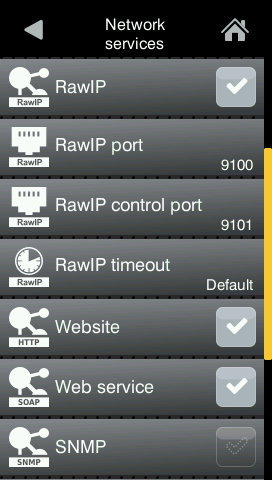
Printer GUI · Setup › Interfaces › Network services (Web service = On)
The WSDL and the service endpoint
Once activated, the printer serves its WSDL contract at:
The SOAP requests themselves are sent to the service endpoint:
The printer inserts the correct scheme ( http or https ) and host into the WSDL automatically, so the address a development tool discovers always matches how the printer was reached.
Ports, HTTP and HTTPS
The service is reached over the printer's web server on port 80 (HTTP) or, when TLS is enabled, port 443 (HTTPS). Whenever authentication is used, prefer HTTPS — see chapter 3.
3 Authentication
Access to the web service can be protected with one of three modes: None, Basic, or Digest. The mode is selected on the printer, in the menu:
Security › Security web service
Choose None, Basic, or Digest. The default setting is Digest.
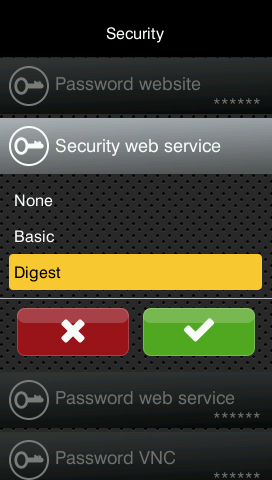
Printer GUI · Security › Security web service (None / Basic / Digest — default Digest)
Default credentials
For Basic and Digest the service uses the dedicated user account:
- User name:
soap - Password:
soap
Change the default password
Change the default soap password before putting the printer into productive or network-exposed use.
Use TLS for credentials
Basic / Digest only over HTTPS
With Basic authentication the credentials are transmitted effectively in clear text. Whenever Basic or Digest is enabled, enable HTTPS on the printer and address the service via https:// so credentials are not exposed on the network.
4 Operations reference
The service exposes seven operations under the namespace http://www.cab.de/WSSchema (SOAP 1.1, document/literal). ESC status keywords are documented in the cab programming manual.
| Operation | Input | Returns | Purpose |
|---|---|---|---|
getPrinterStatus |
status keyword (string) | status string | Query printer / label status |
getlistOfFormats |
— | list of format |
Labels stored on the card |
getlistOfObjects |
— | list of fObject |
Objects of the loaded label |
getlistOfJobs |
— | list of job |
Ten most recent jobs |
loadFormat |
label name (string) | generic + result |
Load a label from the card |
printFormat |
objects, jobID, count | generic + result |
Fill fields and print |
abortAllJobs |
— | — | Cancel all jobs / reset |
4.1 getPrinterStatus
Returns a status value as a string. Accepted input keywords: Generic, Label, and the ESC selectors ESCs, ESCz, ESCi, ESCl, ESCa, ESCj, ESC?.
- Generic returns one of:
ready, printing, pause, error, menu, dump mode. - Label returns the name of the last loaded label; empty if none has been loaded.
4.2 getlistOfFormats
Lists the label formats stored on the printer's memory card (files with extension .lbl or .prn). Each entry has a name and a description. Empty if no formats are available.
4.3 getlistOfObjects
Lists the objects (fields) of the currently loaded label. Each fObject has a name and a type (Text, Barcode, Image, Graphic, or Richtext). Empty if no label is loaded.
4.4 getlistOfJobs
Returns the ten most recent jobs. Each job has an id, a date, a time, and a status. The status is one of:
- finished — job completed;
- aborted — job cancelled;
- printed #N — number of labels printed so far (job not yet complete).
4.5 loadFormat
Loads a label format from the memory card. Input is the format's file name. The response carries a human-readable generic message and a boolean result: true if the format was loaded, false if it could not be found.
On success, generic is Format successfully loaded and result is true.
Note. If a label describes a print action without a job size, you may need to add A 1[NO]; otherwise the load request cannot be sent twice without a print request in between.
4.6 printFormat
Sends a print request. A format must be loaded first (see loadFormat). Input values:
- objects — the fields to change, each as name and value;
- jobID — an optional job name, used to identify the job in getlistOfJobs;
- numbers — the number of labels to print (1 … 999999).
The response carries a generic message and a boolean result: true if the job entered the print queue, false if the objects do not match the loaded label.
4.7 abortAllJobs
Cancels all print jobs and resets the print processing on the printer. Takes no input and returns an empty response.
Interrupts all printing
abortAllJobs aborts every running and queued job on the device immediately. Any partially printed job is lost. Use it only deliberately — e.g. to recover a stuck queue — never as part of a normal print flow.
5 Data types
All types belong to the namespace http://www.cab.de/WSSchema.
| Type | Fields | Used by |
|---|---|---|
format |
name (string), description (string) |
getlistOfFormats |
objectType |
name (string), type (string) |
getlistOfObjects (as fObject) |
job |
id (string), date (date), time (time), status (string) |
getlistOfJobs |
objectTypePrint |
name (string), value (string) |
printFormat (as fObject) |
loadFormat |
generic (string), result (boolean) |
loadFormat & printFormat responses |
faultType |
faultCode (string), faultString (string) |
SOAP faults (all operations) |
Note. objectType (fields name/type, for listing) and objectTypePrint (fields name/value, for printing) are different types — both appear on the wire as <fObject>.
6 Error handling
The service reports problems in two distinct ways:
SOAP faults
Infrastructure-level failures (internal errors while talking to the print engine) are returned as a SOAP fault of type faultType, carrying a faultCode and a faultString (typically Internal server error). Every operation may return a fault. In client code, catch these as an exception.
In-band results
Expected, “soft” conditions are not faults. loadFormat and printFormat return normally with result = false and an explanatory generic message — for example when a format is not found, the field names do not match the loaded label, or the label count is out of range.
7 Using the web service from a programming language
A SOAP client is generated from the WSDL. For C# and Visual Basic, the section starts with setting up the Visual Studio project and adding the service reference; Python needs no project setup. Each language then shows a minimal “get status” example for the three authentication modes, followed by one shared application example (load a label and print it).
Setting up the project (C# / Visual Basic)
The Visual Studio steps are the same for both languages; only the selected project language differs.
Creating the project
In Visual Studio, create a new project of type Empty Project (.NET Framework) and select the language — C# or Visual Basic. Give it a name (e.g. cabWebService), choose a location, and set the framework to .NET Framework 4.8.1 (newer versions work as well). Click Create.
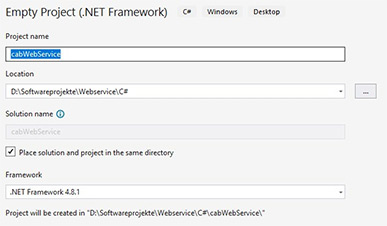
C# · Setup 1 - Create Project
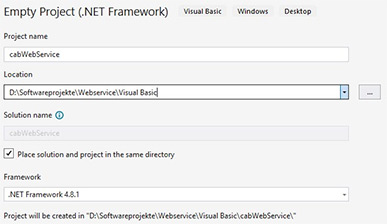
Visual Basic · Setup 1 - Create Project
Adding the service reference
With the web service activated on the printer (chapter 2), right-click the project and choose Add › Service Reference. Enter the WSDL address of your printer, e.g. http://192.168.200.60/cgi-bin/soap/services.wsdl, and choose a namespace (arbitrary, e.g. cab). When prompted, enter the SOAP connection credentials — the defaults are soap / soap. Visual Studio then generates the client proxy and an App.config.
Note. A service reference can be added only in projects based on .NET 5+, .NET Core, or ASP.NET Core; see the WCF Web Service Reference Guide.
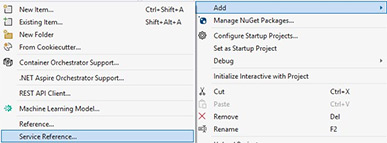
C# · Setup 2 - Add Service Reference
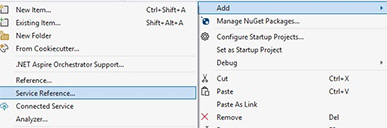
Visual Basic · Setup 2 - Add Service Reference
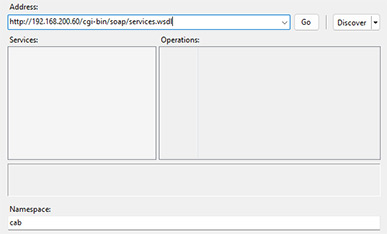
C# · Setup 3 - Service Reference Address
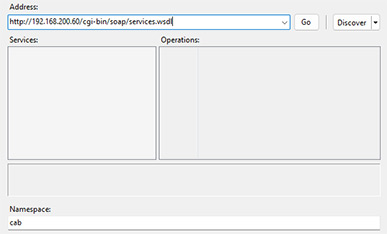
Visual Basic · Setup 3 - Service Reference Address
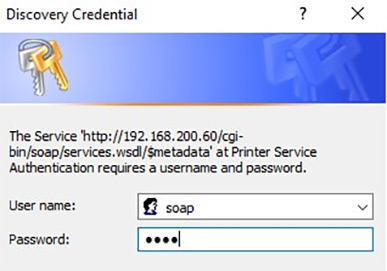
C# · Setup 4 - Discovery Credential
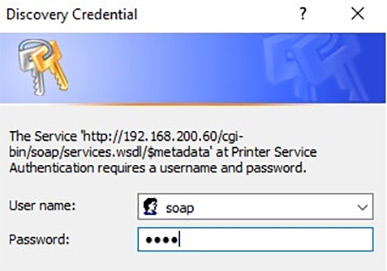
Visual Basic · Setup 4 - Discovery Credential
Configuring App.config
Visual Studio generates an App.config with one binding and one endpoint. Add a binding and endpoint per authentication mode:
7.1 C#
The CabService class below sends a status request over each of the three authentication modes.
7.2 Visual Basic
7.3 Python
Python needs neither a specific project setup nor an IDE. The example uses the zeep SOAP library; all connection parameters are set in code.
7.4 Application example — replace label content and print
Use the following JScript example file. Copy it to the printer's labels directory via FTP (default credentials ftpcard / card). It references a graphic named cab-logo, so also copy cab-logo.png to the images directory.
The application obtains a Digest client, loads the label with loadFormat, lists its fields with getlistOfObjects, builds an array of objectTypePrint entries (field name + new value), and prints them with printFormat. The example loads MyLabel.lbl and sets a serial number.
Appendix
cab on GitHub
Discover, fork and contribute to projects, sample applications and packages: github.com/cab-product-marking
Validity
These instructions are valid for cab label printing systems (SQUIX, MACH 4S, EOS2/5, XC Q, XD Q), print and apply systems (HERMES Q, HERMES QL, Hermes C, AXON) and print modules (PX Q, PX QS).